
Your WordPress.com account settings control your username, email address, and other account information. This guide explains each setting and how to update it. For other account tasks like resetting your password, managing purchases, or setting up a domain, see additional account resources below.
To visit your account settings:
- Hover over your name at the top right corner of any screen while logged into WordPress.com.
- Select the “My WordPress.com account” button:

In the Personal details section, you can adjust the following details:
- Name: Your account’s first and last name.
- Username: The unique name you use to log in to your WordPress.com account. Learn how to change your username.
- Email address: The email address associated with your account. Learn how to change your email address.
In addition, check the box for “I am a developer” to opt in to previews of new developer-focused features on WordPress.com.
When making any change to your account’s personal details, click Save to save the changes.
Gravatar, short for Globally Recognized Avatar, is your public profile information that is visible when commenting on other blogs and sites, posting to forums, or using any other website that supports Gravatar.
You can adjust the following profile information:
- Avatar: A profile photo representing you or your brand. You can update your profile photo by moving your mouse over your current photo and clicking the current photo or the “Update avatar” link.
- Display name: This is how you would like your name to be displayed publicly, such as your first name, a nickname, or your brand’s name. You can change this name as often as you’d like. If you do not enter a public display name, your WordPress.com username is shown by default.
- Web address: This website will be included when you leave comments on other WordPress.com blogs, which can be useful for sharing your site with others. Note that changing your public web address will not affect the displayed link on any existing comments you have made; it will only change the displayed link for any new comments you make in the future.
- About me: A brief bio or other information you want to display on your profile.
When making any change to your account’s public profile, click Save to save the changes.
Delete your WordPress.com account permanently. Learn what steps you will need to take to delete your account.

Use the following resources for other common account tasks:
- Change or reset your password: Update your password or regain access if you’ve forgotten it.
- Recover your account: Regain access if you’re locked out or can’t log in.
- Resolve email already in use errors: Update your account email or resolve “email already in use” errors.
- Confirm your email address: Verify your email or request a new confirmation link.
- Merge two WordPress.com accounts: Combine multiple accounts or move sites between them.
- Manage your purchases: View, cancel, or request refunds for plans and upgrades.
- Change your payment currency: Request a currency change for your account through support.
- Set up or manage a domain: Register, connect, or configure a domain for your site.
- Locate a missing site: Switch between sites or find a missing site.
- Invite people to your site: Add users to help manage your site.
In your account preferences, you can customize the following settings:
Set the dashboard appearance to light, dark, or your system setting. This setting will also apply to other supported areas of WordPress.com.
Control how external AI assistants interact with your WordPress.com account and sites. Visit the MCP access guide for full instructions.
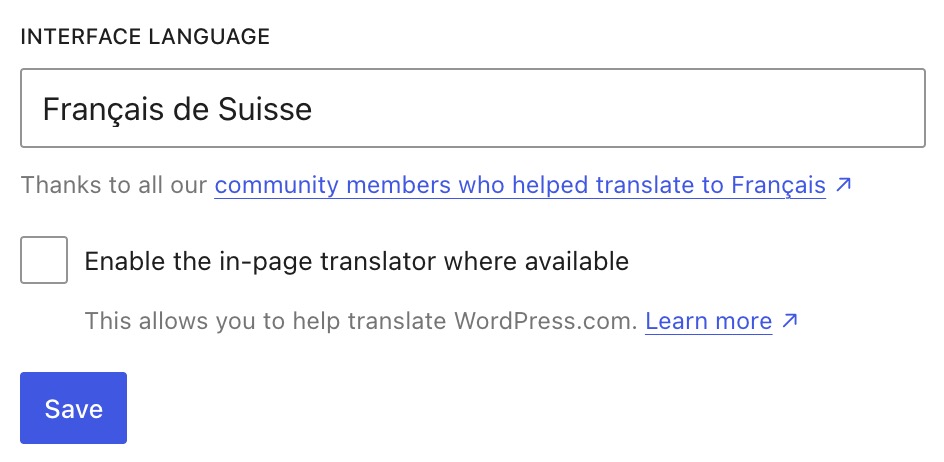
The interface language is the language used for your WordPress.com administrative screens.
Click the language field to select the language for your administrative screens. Then, click the Save button.
If you want to change the language your site uses, learn how to set your site’s language. If you want to provide your site in multiple languages, review our guide for creating a multilingual site.
Expand to see a partial list of some of the most popular languages on WordPress.com:
English
Español (Spanish)
Português do Brasil (Brazilian Portuguese)
Deutsch (German)
Français (French)
Ελληνικά (Greek)
עִבְרִית (Hebrew)
Magyar (Hungarian)
日本語 (Japanese)
Italiano (Italian)
Nederlands (Dutch)
فارسی (Farsi/Persian)
Română (Romanian)
Русский (Russian)
Türkçe (Turkish)
Bahasa Indonesia (Indonesian)
简体中文 (Simplified Chinese)
繁體中文 (Traditional Chinese)
한국어 (Korean)
العربية (Arabic)
Svenska (Swedish)
Shqip (Albanian)
Azərbaycan dili (Azerbaijani)
For some languages, you can enable the in-page translation tool where available. Use it to help translate WordPress.com into more languages.
The account default settings control what you see when you log into your WordPress.com account.
Choose your default landing page after login:
- Primary site dashboard: The dashboard for the site you set as your primary site.
- All sites: Show your Hosting Dashboard first, displaying all the sites on your account. This is useful if you manage multiple websites from your account.
- Posts from Reader: Display the WordPress.com Reader, where you can stay current with posts from blogs you’ve subscribed to.

If you select “Open your primary site’s dashboard” you can choose which of your sites is your primary site that is loaded when you log in (not to be confused with setting your site’s primary address).

After you make any changes, click the Save button to save your changes.
In the Privacy section of your account preferences, you can manage your privacy settings and data usage preferences:
- Usage information: We collect usage information to help us improve your WordPress.com experience. Enable or disable usage information sharing using the toggle option provided.
- Data processing addendum: Learn more about requesting a data processing agreement.
If you have blocked a site in Reader, you can manage your list of blocked sites here. Blocked sites will not appear in your Reader and will not be recommended to you.

