


The Fediverse lets you connect with a broader audience and attract more subscribers. This guide will show you how to enable your blog as a Fediverse profile so readers on other platforms can follow and interact with your posts.
The Fediverse is a widespread group of social networks connected (or “federated”) using the ActivityPub protocol. The Fediverse includes image-sharing platforms like Pixelfed, video-sharing platforms like PeerTube, forums like Lemmy, and microblogging platforms like Mastodon, Pleroma, and Misskey.
Blogging platforms can also be part of the Fediverse. With our ActivityPub integration, you can use your WordPress.com site as a Fediverse profile and share your content. Doing so allows readers on the Fediverse to subscribe to your site and receive your latest blog posts directly on their preferred platform. Readers can also reply to your posts on the Fediverse. Their replies appear as comments on your blog post.
To connect to the Fediverse, take the following steps:
- Visit your site’s dashboard.
- Navigate to Settings → ActivityPub.
- Click the “Join the Open Social Web” button.
Sites with plugins installed
First, install and activate the ActivityPub plugin. Then, you can manage your profile details through Settings → ActivityPub.
Once you’ve enabled the Fediverse setting, your new Fediverse profile has been created. You can now share your Fediverse name with others so they can subscribe to your blog on their own Fediverse account. You can insert the “Follow me on the Fediverse” block anywhere on your site so your readers can start following you from there.
Enabling the Fediverse applies to new posts only; this will not copy over old posts. New posts (and updates to existing posts) may take up to 15 minutes to appear on federated platforms.
With your blog connected to the Fediverse, you can use the following features:
Your WordPress.com site can participate in the Fediverse in two ways—depending on whether your site has plugins enabled:
- Sites with plugins enabled: You can choose between individual user accounts and a whole blog account:
- Individual user accounts: Each author has their own Fediverse identity (
username@your-domain.com). - Whole blog account: The blog itself has a Fediverse identity (
blog@your-domain.com).
- Individual user accounts: Each author has their own Fediverse identity (
- Sites without plugins enabled: Only the blog account is available. The site shares content under a single Fediverse identity (
blog@your-domain.com).
Use individual user accounts when each author should have their own following and identity. Use the blog account when you want a simpler setup or when you’re the only author.
When you publish a post on your WordPress.com site, it gets automatically shared with your followers in the Fediverse. Your content appears in their feeds just like posts from other Fediverse platforms such as Mastodon or Pleroma.
The ActivityPub integration formats your content for the Fediverse, including featured images, excerpts, and links back to your original post.
Before publishing, you can preview your post to see how it will appear to Fediverse users on different platforms. To preview a post, click the “Fediverse preview” option when previewing a post:

You have complete control over which content is shared to the Fediverse. By default, public posts are federated while private or password-protected posts remain exclusive to your WordPress.com site.
To set whether a post appears in the Fediverse:
- While editing a post, open the post settings sidebar.
- Scroll down to the Fediverse section.
- Under Visibility, choose one of the following options:
- Public: visible to everyone in the Fediverse.
- Quiet public: doesn’t appear in public timelines.
- Do not federate: keeps the post only on your WordPress.com site.
On sites with plugins, you can also configure global settings to control which post types (posts, pages, custom post types) are federated by default. This gives you both site-wide control and per-post flexibility to manage exactly how your content is shared.

Your site can receive and display interactions from across the Fediverse. When someone on Mastodon or another Fediverse platform comments on your post, their comment appears directly in your WordPress comments section.
These Fediverse comments integrate naturally with your existing WordPress comment system. You can moderate them like regular comments, and any replies you make are automatically federated back to the original commenter, maintaining the conversation thread across platforms.
The integration also tracks likes and shares (boosts) from Fediverse users, so you can see how your content is received across the Fediverse.
The ActivityPub plugin supports mentions and replies across platforms. When writing a post, you can mention any Fediverse user by typing their full address, like @username@domain.com. The mentioned user receives a notification, and your post appears in their mentions timeline, regardless of which Fediverse platform they use.
Similarly, when someone mentions your Fediverse identity in their post, you’ll receive an email notification that you can respond to with a new post.
Setting your WordPress.com site as a Fediverse profile includes creating an alias for your site’s profile. This alias is based on your domain name and is not editable. While you can do this using the default WordPress.com address, registering a new custom domain will give your profile a memorable, uniquely identifiable alias, making it easier for users across the Fediverse to find and interact with your profile. A custom domain will also allow you to move your entire Fediverse connection to another host anytime if needed.
Plugin-enabled sites can customize your Fediverse profile, including your profile alias, from the ActivityPub plugin settings in your User Profile, accessible from Settings → ActivityPub.
The Fediverse ActivityPub integration supports the following activities:
- Outbound:
Create,Update, andDeletefor Posts. - Inbound:
Create(posts).Update(posts/comments, followers).Follow(followers).Undo(follow request—unfollow).Delete(posts, comments, followers).
You can turn off the Fediverse connection at any time. When you do, your site stops sharing new posts to the Fediverse. People who follow your profile will stop receiving your posts, but they are not notified that you’ve disconnected. The steps depend on whether your site has plugins enabled.
Sites without plugins
To turn off the Fediverse, follow these steps:
- Visit your site’s dashboard.
- Navigate to Settings → ActivityPub.
- Click the Settings tab and scroll to the bottom.
- Click “Leave the Open Social Web”.
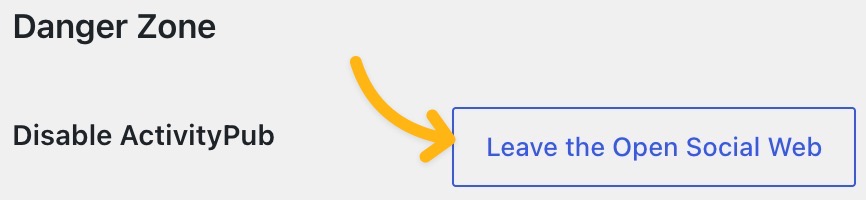
Your site is now disconnected from the Fediverse, and new posts will no longer be shared there.
Sites with plugins
To turn off the Fediverse, deactivate or delete the ActivityPub plugin. See deactivate or delete a plugin for the steps.
For additional guidance on common Fediverse problems and edge cases, visit the ActivityPub plugin on GitHub.

